
If your employer manages schedules, clocking in and out, and leave with UR Work, this page is for you. It walks you through everything from logging in for the first time to swapping a shift.
1. Your login details
When your employer adds you to UR Work, you get an email from UR Work with your login details: your email address and a temporary password.
- Can't see it? Check your spam or junk folder.
- Nothing arrived at all? Your email address might be wrong in the system. Tell your manager; once they fix it, your details go to the right address.
- Lost the temporary password? Your manager can send you new login details.
No email address? If you have an Android phone, you already have a Google account and so a Gmail address (see "Accounts" in your phone settings). Otherwise, set up a free email address and give it to your manager. If you forget your password later, the reset code goes to that address.
2. Download the app
- iPhone: UR Work on the App Store
- Android: UR Work on Google Play
3. Log in for the first time
-
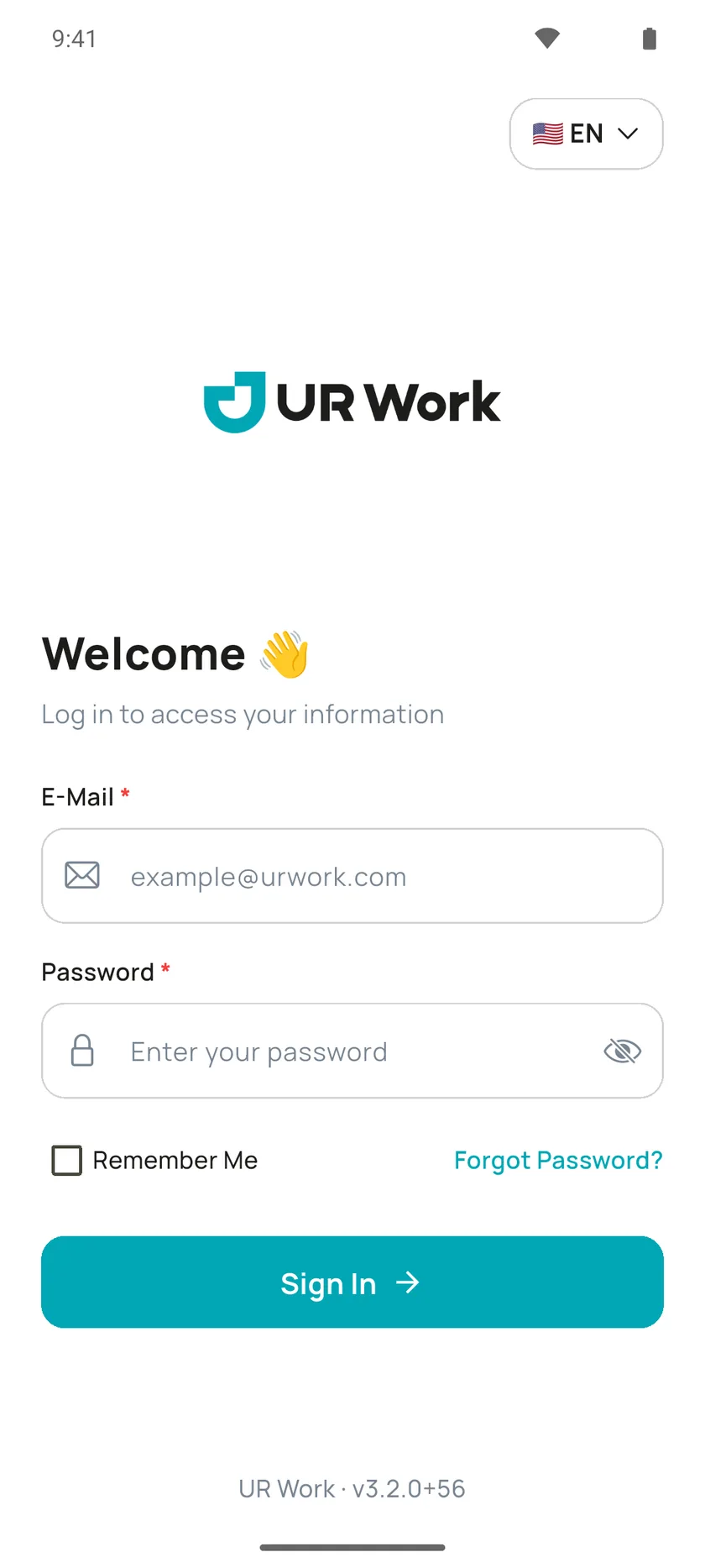
Open the app. Enter your email address and temporary password under "E-Mail" and "Password", then tap "Sign In".
-
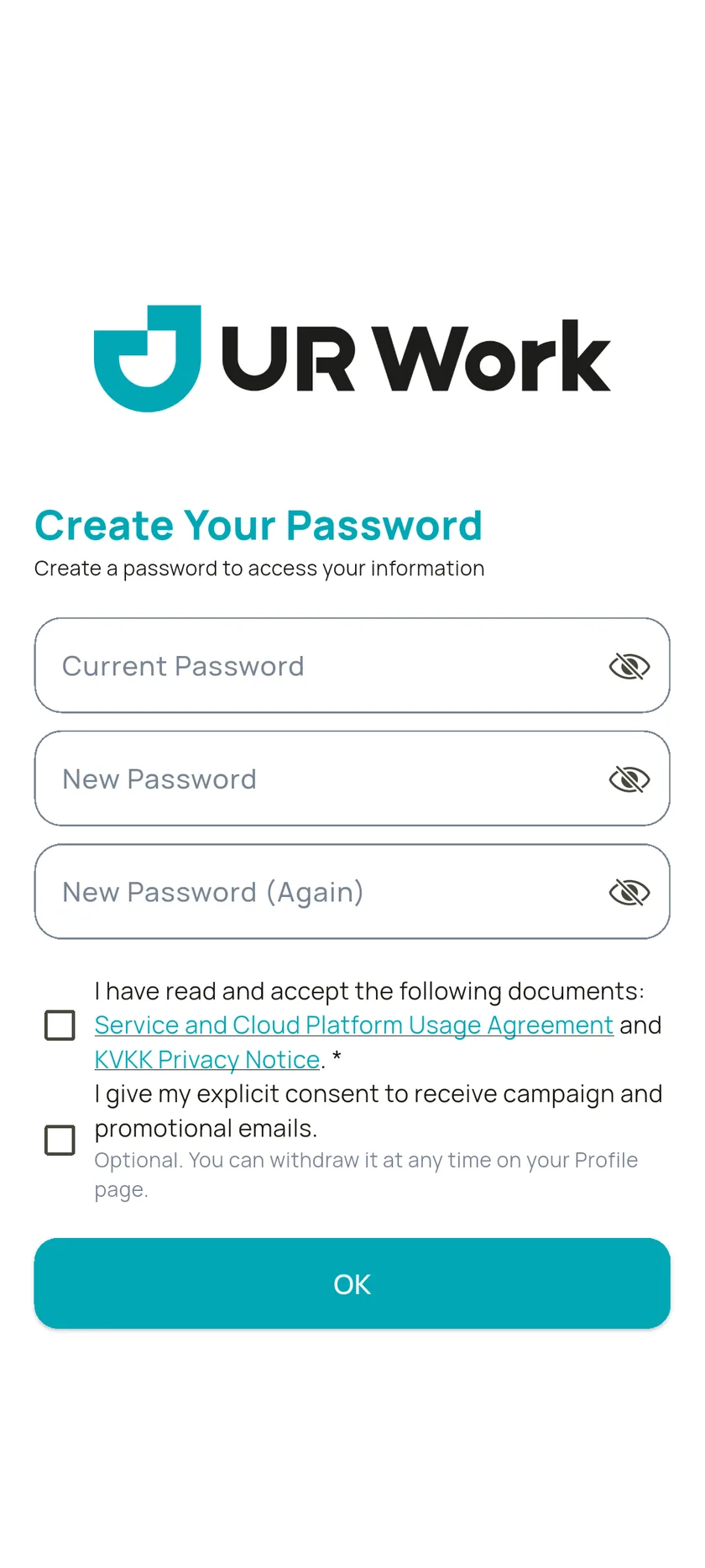
The "Create Your Password" screen opens. Enter the temporary password under "Current Password", and your new one under "New Password" and "New Password (Again)".
- Your password needs 8 to 32 characters, with an uppercase letter, a lowercase letter, a number and a special character (such as
!or?). - Use English letters only (no accents).
- Your password needs 8 to 32 characters, with an uppercase letter, a lowercase letter, a number and a special character (such as
-
On the same screen, tick "I have read and accept the following documents". Tap a document's name to read it. This box is required.
-
Below it you may see a separate box for campaign and promotional emails. It's optional: you can carry on without it and change your mind later on your Profile.
-
Tap "OK".
Don't want to type your password every time? Tick "Remember Me" on the sign-in screen. Next time your email shows as a "Saved account" and you just tap "Sign In". To use another account, tap "Sign in with a different account". Only use this on your own phone.
Seeing "Our agreement has been updated"? One of the documents you accepted has a new version. Tap "Read" to open it, tick "I have read and accept" and tap "Continue". You can't get into the app without accepting.
4. Pick your module
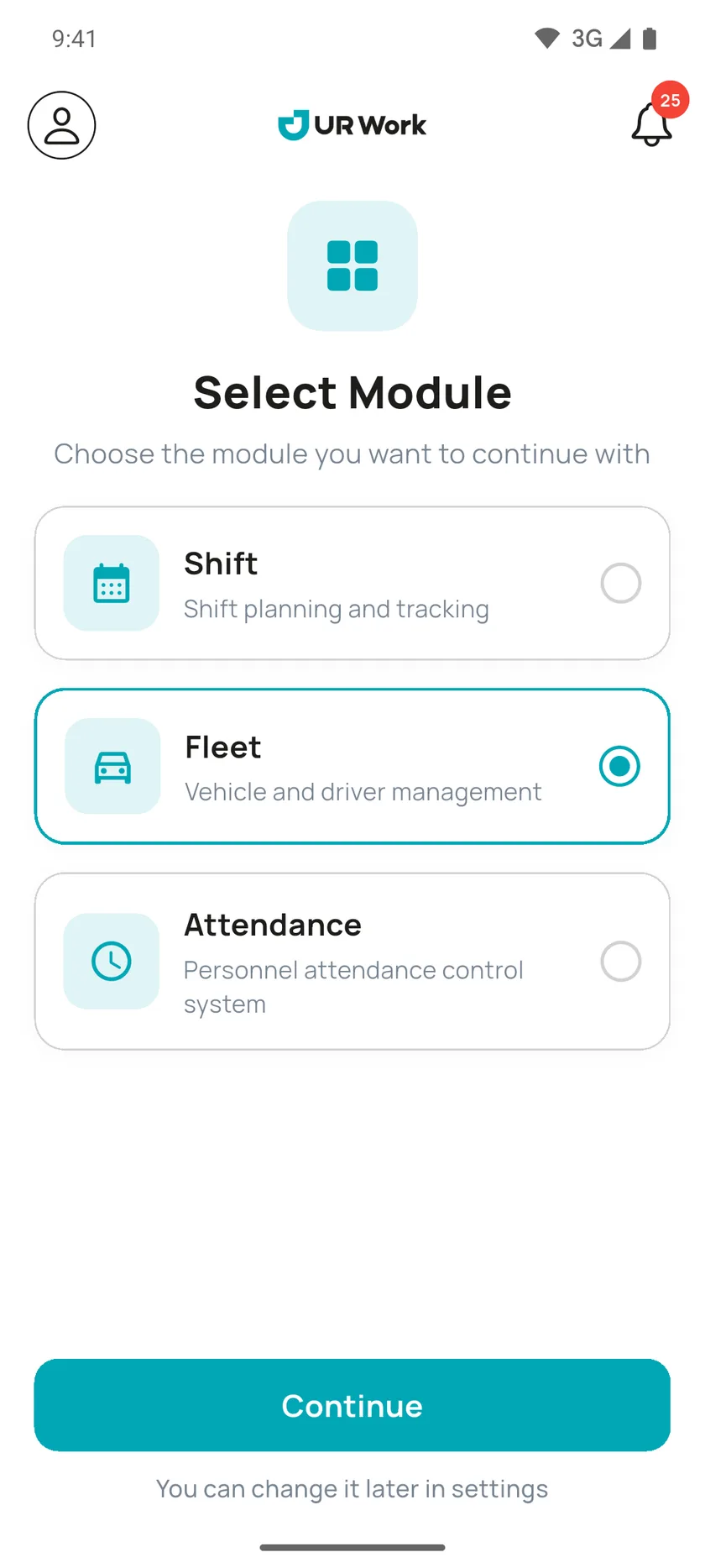
After you sign in, you'll see "Select Module":
- "Attendance": clocking in and out, breaks, missed punches, leave.
- "Shift": your schedule, shift swaps, tasks, leave.
- "Fleet": if your employer also manages vehicles with UR Work (not covered here).
Modules your employer hasn't turned on for you show "No access". Pick your module and tap "Continue". If you only have one, it's already selected.
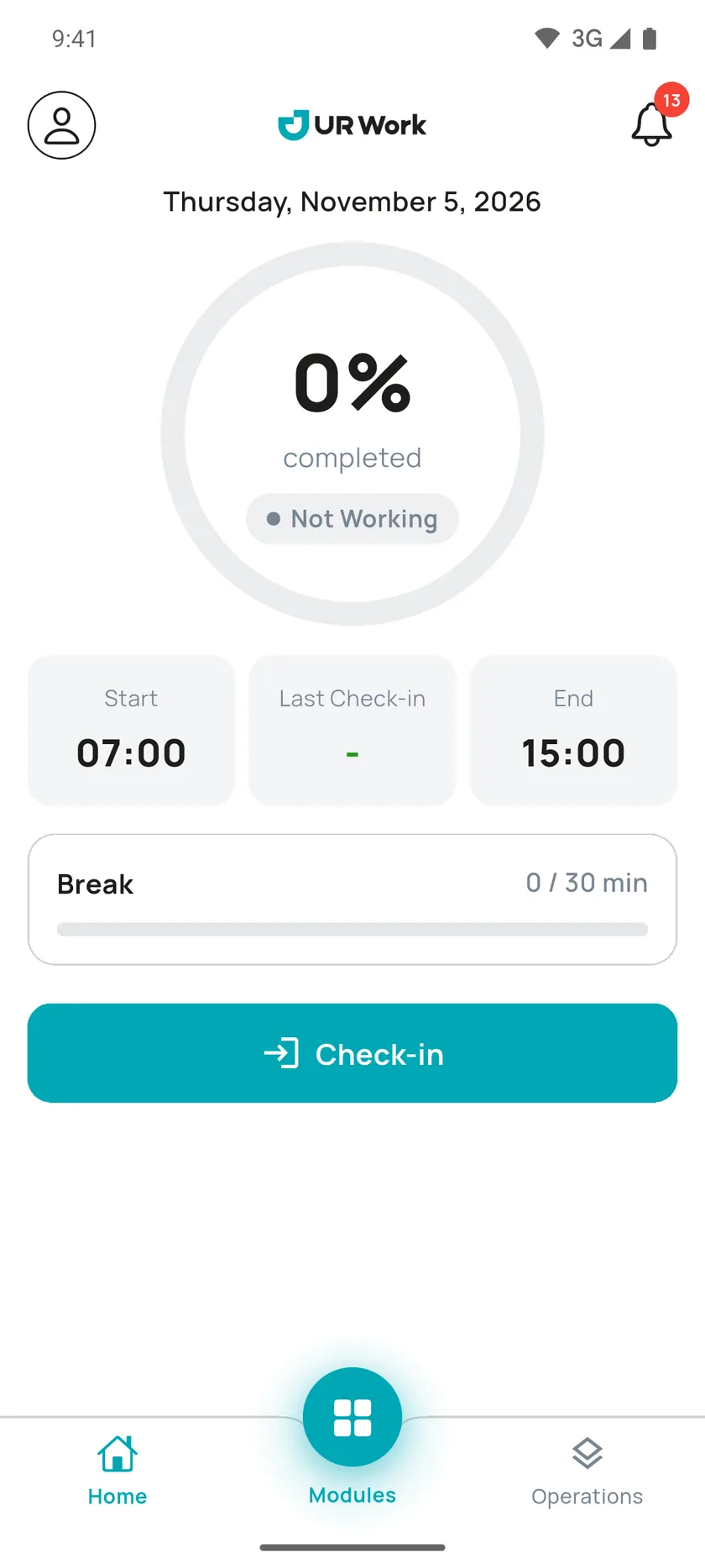
At the bottom there are three buttons: "Home", "Modules" in the middle (to switch module) and "Operations" (requests, leave, tasks).
5. Turn on notifications, location and camera
- Notifications: the app asks the first time you open it. That's how you get a reminder if you forget to clock in.
- Location: the app asks the first time you try to clock in. Without it you can't clock in or out, or log a break.
- Camera: only needed if there's a QR poster at your workplace.
Turned something off by accident? The app tells you what's wrong and takes you to your phone settings with the "Open Settings" button. Turn on location, notifications and camera for UR Work there.
When is your location recorded? Only at the moment you tap a button: clocking in, clocking out, starting or ending a break, and completing a task that needs your location. The app doesn't request your location when it's closed or in the background. There's no live tracking.
6. Clocking in and out
On the Attendance home screen you only see the button for what you can do right now:
- Arriving? Tap "Check-in". A short confirmation appears at the top (for example "Checked in · 09:02").
- At work? You see "Start Break" and "Check-out". If your employer has set a break allowance, the time you have left shows under the button.
- On a break? You only see "End Break", with a live countdown. To clock out, end your break first.
- Leaving? Tap "Check-out". "Check out now?" shows your check-in time, check-out time, how long you worked today and your break. If it's right, tap "Confirm Check-out"; if not, "Cancel".
After you clock out, the home screen shows how long you worked that day (for example "Worked 8 h today · checked out 17:05").
QR poster at work? The home screen tells you to scan the QR code at your workplace. When you clock in or out, "Scan QR Code" opens; hold the code on the poster up to your camera. At that workplace you need to scan the code and be on site. Breaks don't need a scan.
You need an internet connection. Without one you can't clock in; fix it later with a request (see below).
Forgot? If your shift has started and you haven't clocked in, the app reminds you after 5, 15, 30, 60 and 120 minutes. If you forget to clock out after your shift ends, you get reminders at the same intervals.
Your records: if your employer has turned it on, you can see past records under "Operations" > "Attendance" (check-in & check-out records).
7. Forgot to clock in or out: missed punch request
-
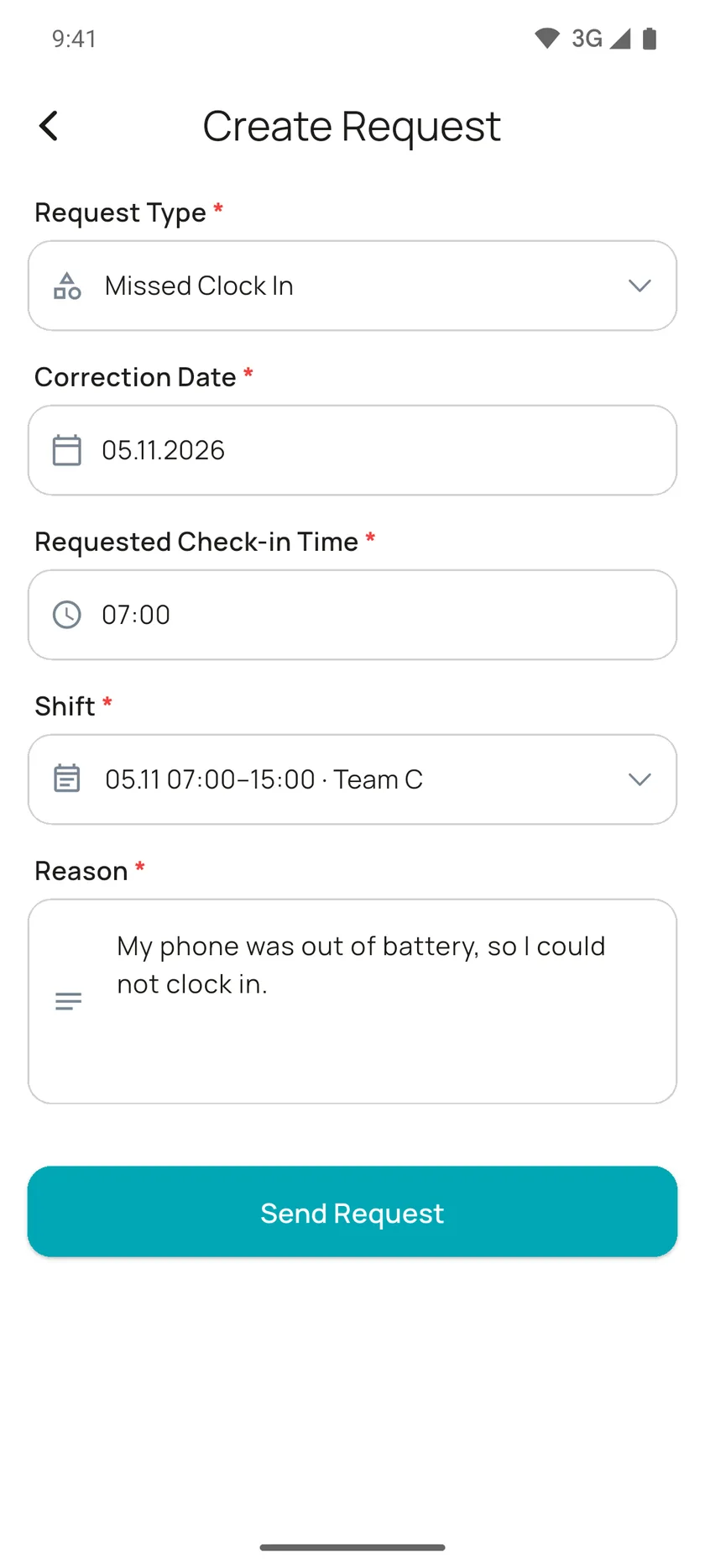
In Attendance, go to "Operations" > "Missed Punches" and tap "+". The "Create Request" form opens.
-
Choose the "Request Type":
Request type When to use it Missed Clock In You couldn't clock in today. Only today's date can be picked. Missed Clock Out You clocked in but forgot to clock out. Full Record There's nothing for that day; you enter start and end time together. Also use this for a shift that started yesterday and ended today. Correction The check-in or check-out time on your record is wrong. -
Enter the "Correction Date" and the time (or times) you're asking for.
-
If you work shifts, "Shift" lists your shifts for that day; pick the right one. If only one fits, the app picks it for you. If you have no shift that day, the app says so; ask your manager.
-
For a night shift where the end time is before the start time, the app puts the clock-out on the next day ("+1 day").
-
"Reason" is required: say briefly what happened. Tap "Send Request".
Once your manager approves it, it goes on your timesheet. Changed your mind? While the request is still pending, open it and tap "Cancel request".
8. Requesting leave
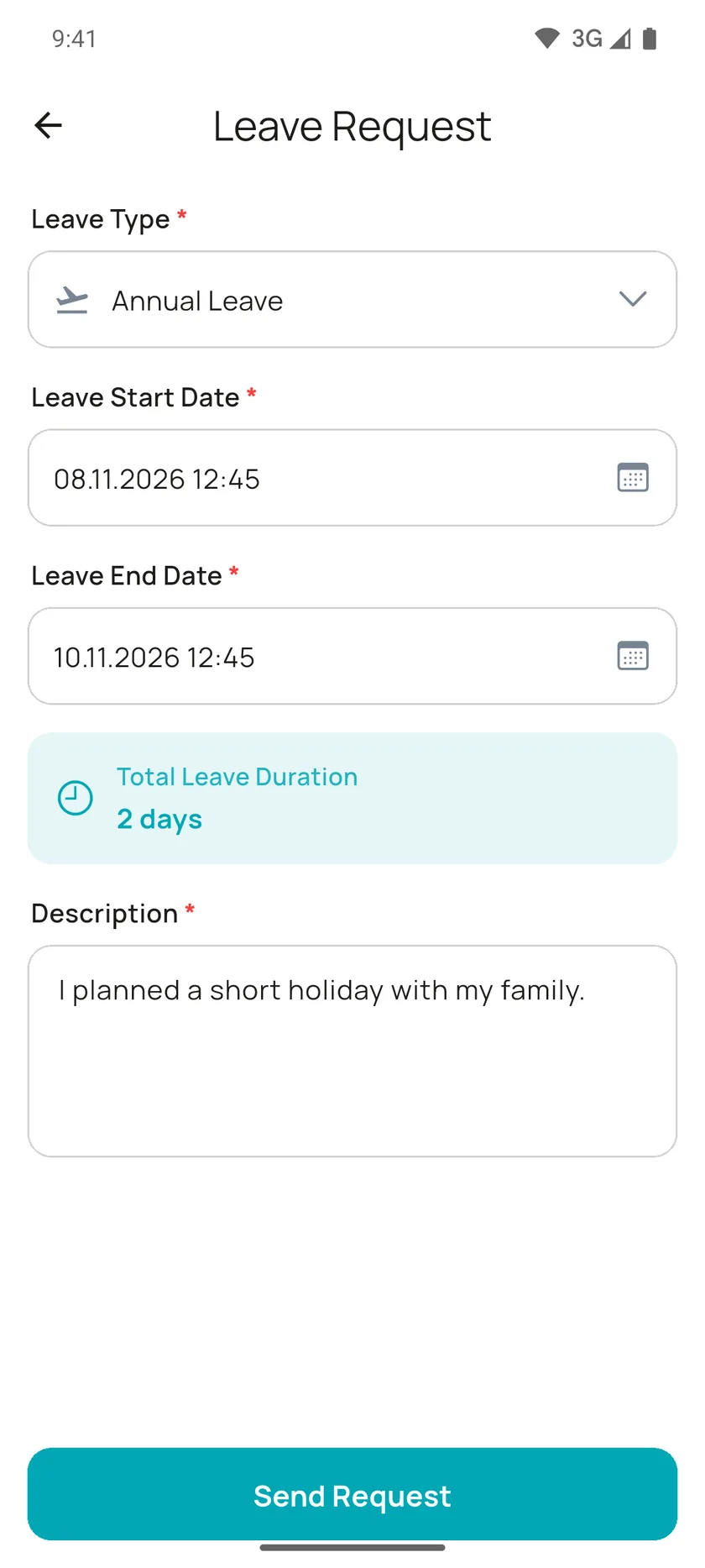
- Under "Operations" > "Leaves", tap "+". The "Leave Request" form opens.
- Choose the "Leave Type", "Leave Start Date" and "Leave End Date". The app works out the "Total Leave Duration" for you.
- "Description" is required: say briefly why you need the time off. Tap "Send Request".
Your request goes through your employer's approval order (for example your team lead first, then the branch manager). You can follow its status in the "Leaves" list and in the request details. If your leave hasn't started and the approval is still in progress, open the request and withdraw it with "Cancel request".
9. Swapping a shift
If your employer uses UR Work for shift planning, you can swap a shift with a coworker.
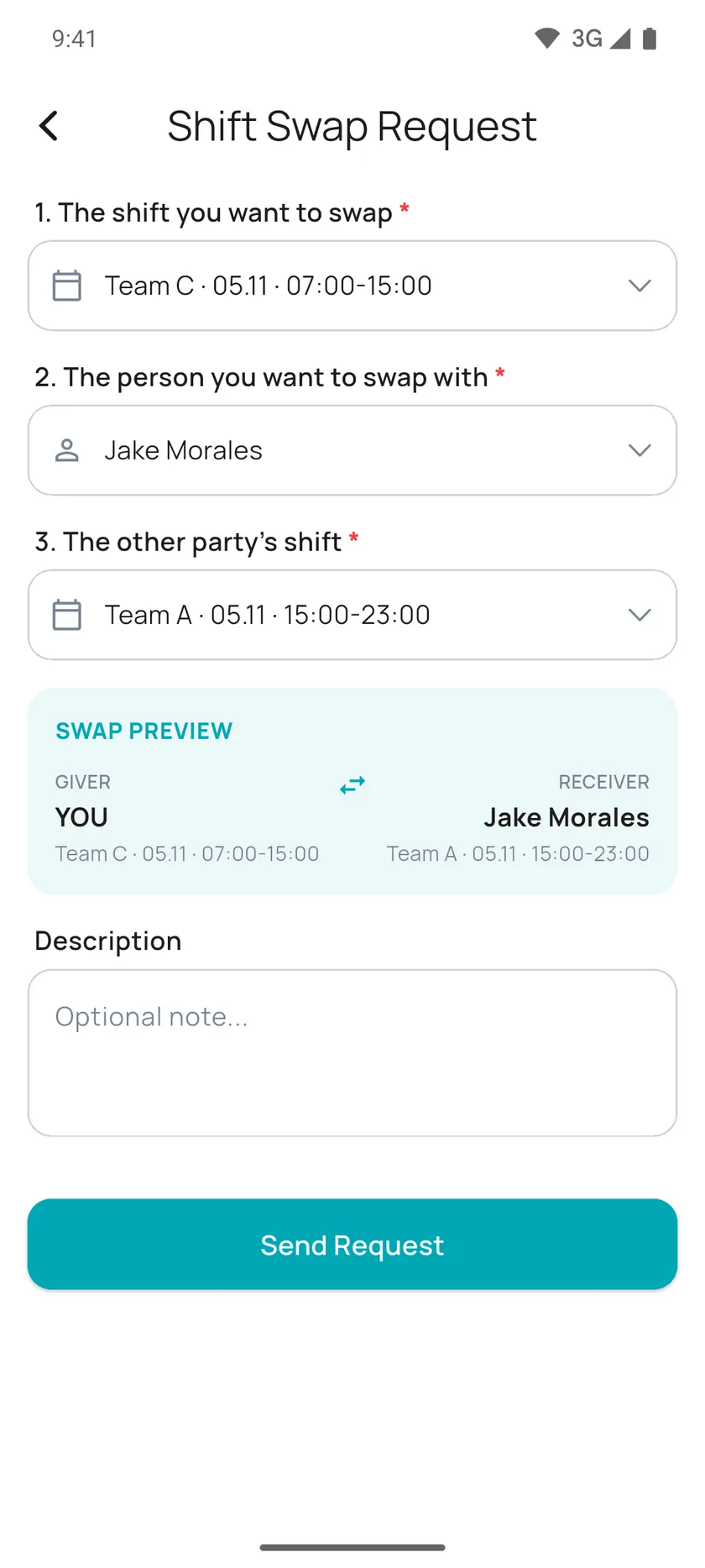
- In Shift, go to "Operations" > "Shift Swaps" and tap "+". The "Shift Swap Request" form asks for three things:
- "1. The shift you want to swap" (your own shift),
- "2. The person you want to swap with",
- "3. The other party's shift".
- Check who gets which shift in the "Swap Preview". Add a note under "Description" if you like, then tap "Send Request".
- Your coworker accepts, and once your manager approves, the swap is in the schedule.
Requests you sent are under the "My Requests" tab; offers from coworkers are under "Requested".
10. Tasks
Your manager can give a task to you or to your team. You'll find them in Shift under "Operations" > "Tasks".
- Open the task and read in "Task Detail" what needs doing and where.
- Done? Tap "Complete Task", add a short note if you want, and tap "Complete Task" again.
- Team task: anyone in the team can complete it. Once someone does, it closes and "Completed by" shows who.
- Task at a set place: when you complete it, the app asks for your location; without location access it won't go through. Depending on your employer's settings, you may not be able to complete it if you're too far away.
11. Profile and settings
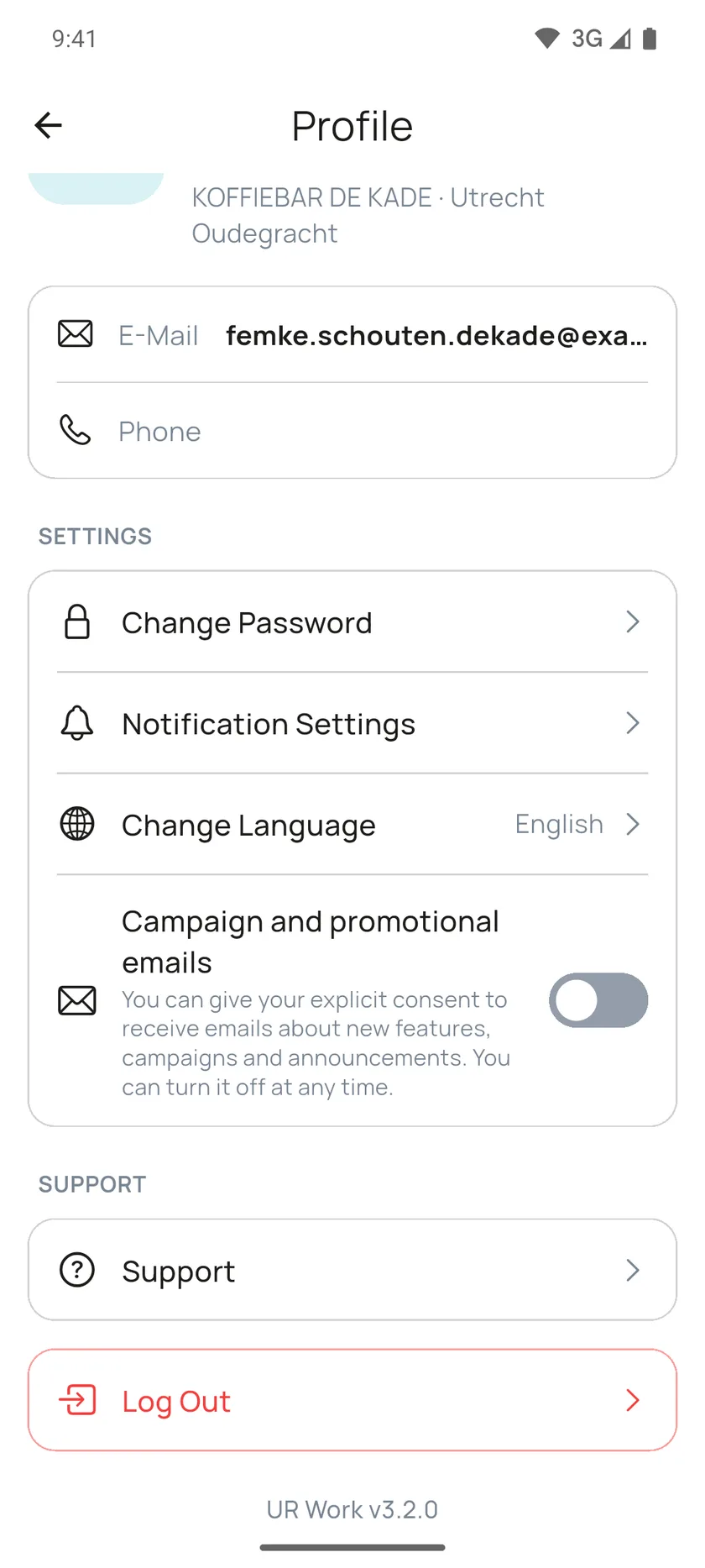
Tap the person icon at the top left to open your "Profile":
- "Change Password": pick a new password.
- "Notification Settings": turn notifications on or off.
- "Change Language": English, Dutch or Turkish.
- "Campaign and promotional emails": optional consent; turn it off any time.
- "Log Out": sign out on this phone.
FAQ
I forgot my password. What do I do?
On the sign-in screen, tap "Forgot Password?", enter your email address and tap "Send Code". You'll get a 6-digit code by email. Enter it, then choose a new password on the "Set New Password" screen. The code only goes to the email address your employer has on file.
I get a location message and can't clock in. Why?
Check that location is on for your phone and that UR Work has location access; the "Open Settings" button in the app takes you to the right place. If you're indoors, move somewhere more open and try again. If it keeps happening at work, tell your manager: the workplace location or the allowed distance might be set up wrong.
Why am I not getting reminders?
Check that UR Work notifications are on in your phone settings. In the app, also check person icon > "Profile" > "Notification Settings".
Why won't the QR code scan?
Check that the camera is allowed and that you're scanning the UR Work poster at your workplace. If the app asks you to update, install the latest version. If a new poster has gone up, the old one no longer works; ask your manager.
The app says "You have no work today", but I'm working. What should I do?
There's no shift or working time scheduled for you today (if you're on leave, the reason is shown). Tell your manager; once your shift is in, you can clock in or send a missed punch request.
Can I withdraw a request?
Yes. A missed punch request while it's pending, and a leave request as long as your leave hasn't started and the approval is still in progress. Open the request and tap "Cancel request".
Does the app track where I am all day?
No. Your location is only recorded when you clock in or out, start or end a break, or complete a task that needs your location. The app doesn't request your location in the background.
Can I use the app in another language?
Yes: English, Dutch and Turkish. Pick yours at the top right of the sign-in screen, or under "Profile" > "Change Language".
Still stuck? Ask your manager.